Compress Images Without Losing Quality
Cut image file sizes by 70–90% while keeping them sharp — the lossy/lossless truth, target-size tricks, and batch workflows that save hours.

A phone photo is 4–8MB. The form accepts 100KB. The website hero image is making your page load like it's 2009, and the email with six attachments just bounced. Oversized images are the most common file problem on the internet — and the most fixable, because a photo can usually shed 80% of its weight before your eyes notice anything at all.
Why images compress so well
Camera photos store far more detail than screens display or portals need — subtle noise, imperceptible colour gradations, resolution meant for poster printing. Compression works two honest angles:
- Lossy compression re-encodes the image, discarding data your eye is worst at seeing (fine colour differences) while preserving what it's best at (edges, brightness, faces). At sensible settings this is visually invisible.
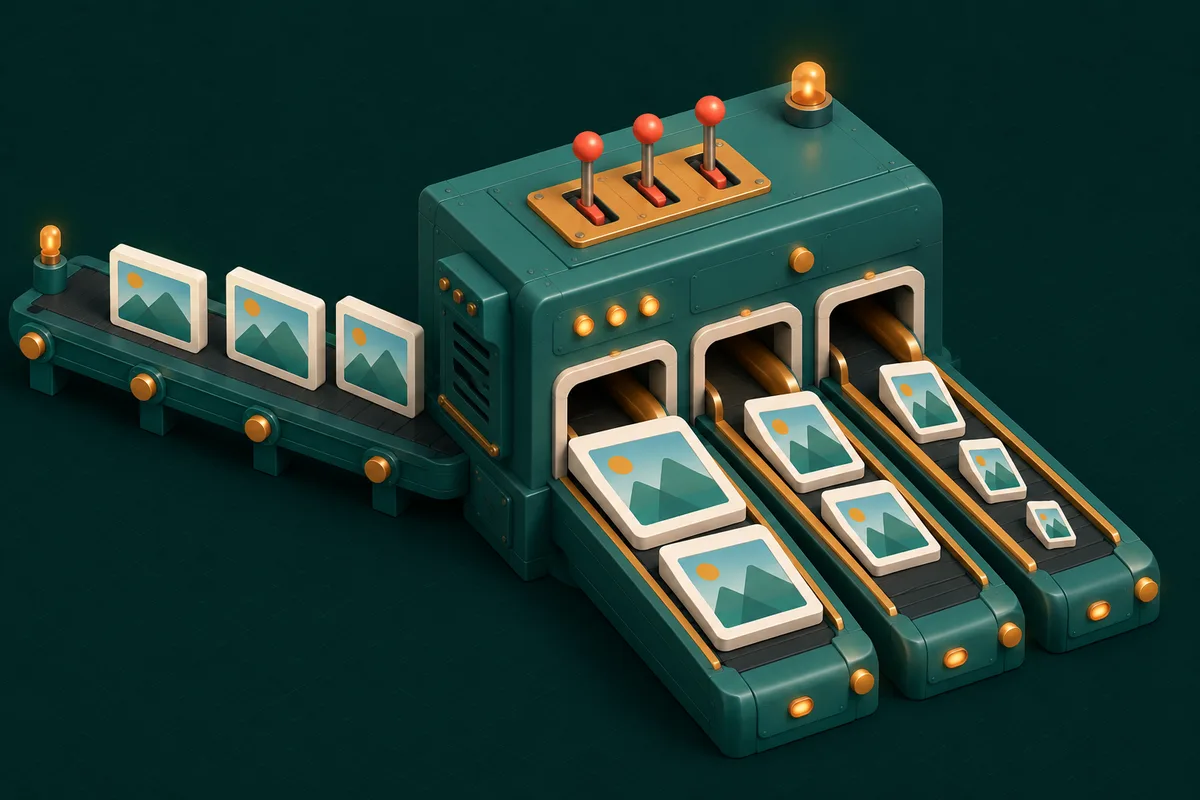
- Resizing — a 4000-pixel-wide photo shown in an 800-pixel slot carries 25× the pixels anyone will ever see.
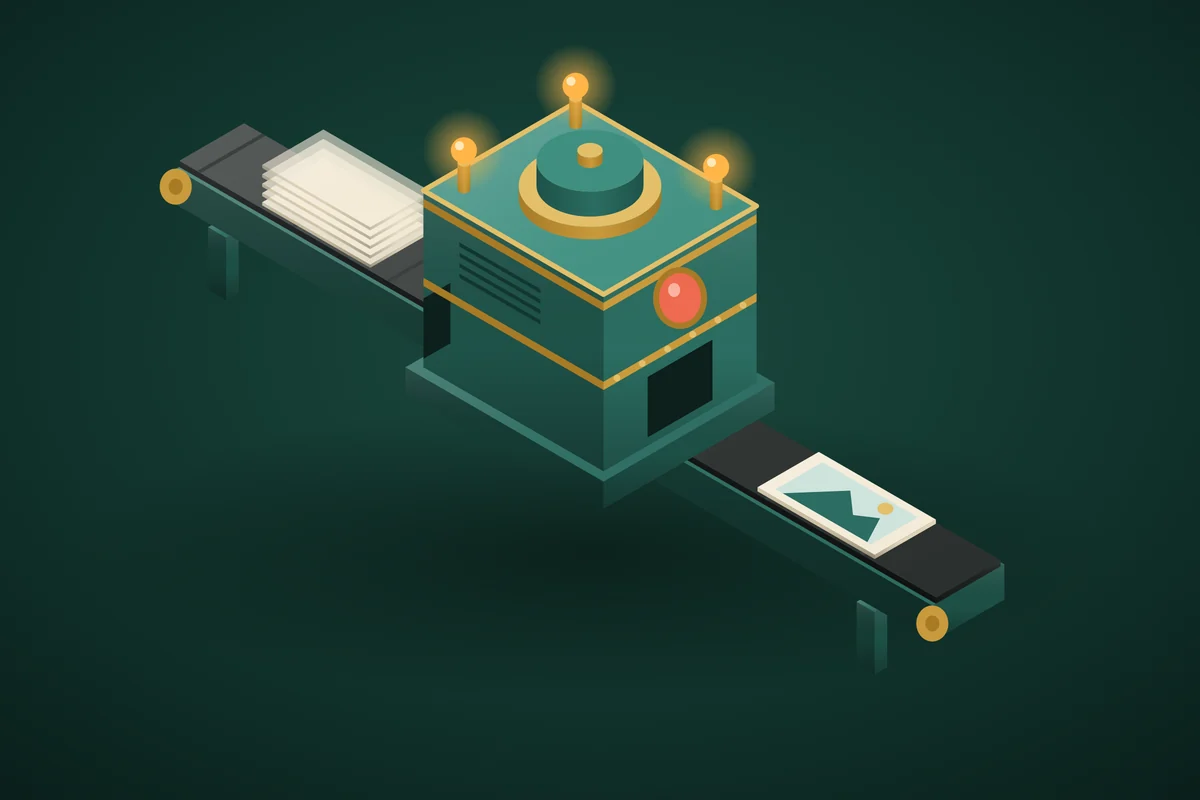
Compress Image combines both, in your browser, with a live before/after preview so "did it get worse?" stops being a guess.
Hitting an exact size: the portal problem
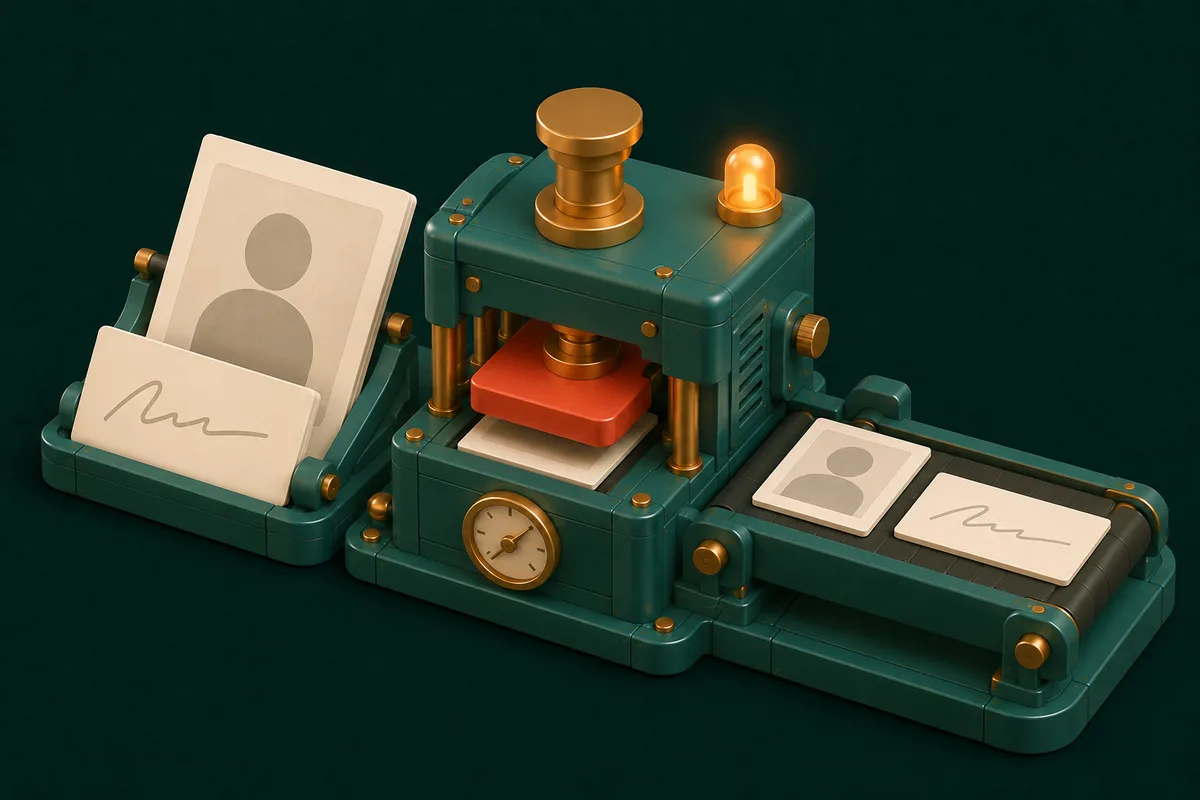
Job applications, exam registrations and government forms love precise ceilings — photo under 100KB, signature under 50KB. Guessing with a quality slider wastes ten minutes; target-size mode works backwards from the number:
- Open Compress Image, drop in the photo.
- Enter the target (100KB, 50KB — whatever the form says).
- The tool finds the best quality that fits under it. Download, upload, done.
The same target logic exists for documents in Compress PDF — between the two, "file too large" is a solved category.
Quality settings that actually make sense
| Use | Setting | What you get |
|---|---|---|
| Web pages & email | 70–80% quality | 70–90% smaller, visually identical |
| Portals with limits | Target-size mode | Exactly the size demanded |
| Archival / print | 90%+ or lossless | Large files, zero compromise |
The trap to avoid: compressing an already-compressed image repeatedly. Each lossy pass discards a little more; three rounds of "just a bit smaller" produce the muddy artifacts people blame on tools. Keep originals; compress copies, once, to purpose.
Format is half the file size
The same picture at the same visible quality can differ 3× in size purely by format. WebP beats JPG by 25–35% at equal quality — JPG to WebP is the single cheapest speed upgrade a website can make (and WebP to JPG converts back for tools that don't accept it). Screenshots and graphics with flat colours often shrink dramatically as PNG-to-WebP or even PNG to JPG when transparency isn't needed. For the full decision, see the Image Converter.
Batch: the real time-saver
Nobody compresses one image. Product catalogues, event albums, listing photos — Batch Image Compress takes the whole folder, applies your settings uniformly, and returns an organized ZIP. Combine with Resize Image presets when everything also needs the same dimensions.
Frequently Asked Questions
Will compression make my photos blurry?
At recommended settings, no — the discarded data is genuinely invisible in normal viewing. Blur appears with extreme targets (a detailed 4MB photo forced to 20KB) or repeated recompression. The live preview shows you exactly what you're trading.
What's the best size for website images?
Rule of thumb: no wider than the largest slot that displays it (1600–1920px covers full-width heroes), at 70–80% quality, ideally WebP. Most sites' images can shrink 80% with zero visible change — and page speed is a ranking factor.
Compress or resize first?
Resize first, then compress: shrinking dimensions removes pixels, compression then optimizes what remains. Target-size mode in Compress Image handles both automatically.
Is it safe for private photos?
Everything runs in your browser — photos never upload to any server. Compressing ID photos or personal pictures here is exactly as private as editing them offline.
Before the next upload bounces, take thirty seconds: open Compress Image, set your target, and send the lean version — the whole picture workshop is at Image Tools.