Your Scanned PDF Is a Photograph: How to Make It Searchable
Ctrl+F finds nothing in a scanned document because there is no text in it — only a picture of text. OCR adds the missing layer, and it runs in your browser.
You open a scanned document, press Ctrl+F, type a word you can plainly see on the screen, and get nothing. No results. The word is right there.
This is not a bug and your PDF is not broken. It is doing exactly what it was built to do — which is to be a photograph.
A scanned PDF is a picture wearing a PDF costume
There are two completely different things that both end in .pdf.
A PDF exported from Word, Google Docs or a browser contains actual text: characters, fonts, positions. Your reader knows the letter "R" is on page 3. Search works, copy works, a screen reader can read it aloud.
A PDF produced by a scanner, a photocopier, or a phone camera app contains an image of a page. To the software it is a rectangle of coloured pixels that happens to look like writing. There is no letter "R" anywhere in the file — only a dark shape that your eyes recognise and the computer does not.
That is why search fails, copy gives you nothing, and text selection either does not work or grabs the whole page as one picture.
It matters more than it sounds. In India especially, an enormous amount of important paper exists only as scans: old marksheets, degree certificates, property papers, medical records, bank statements from before net banking, government correspondence. All of it is legally fine as a scan and completely useless the moment you need to find one number in three hundred pages.
What OCR actually does
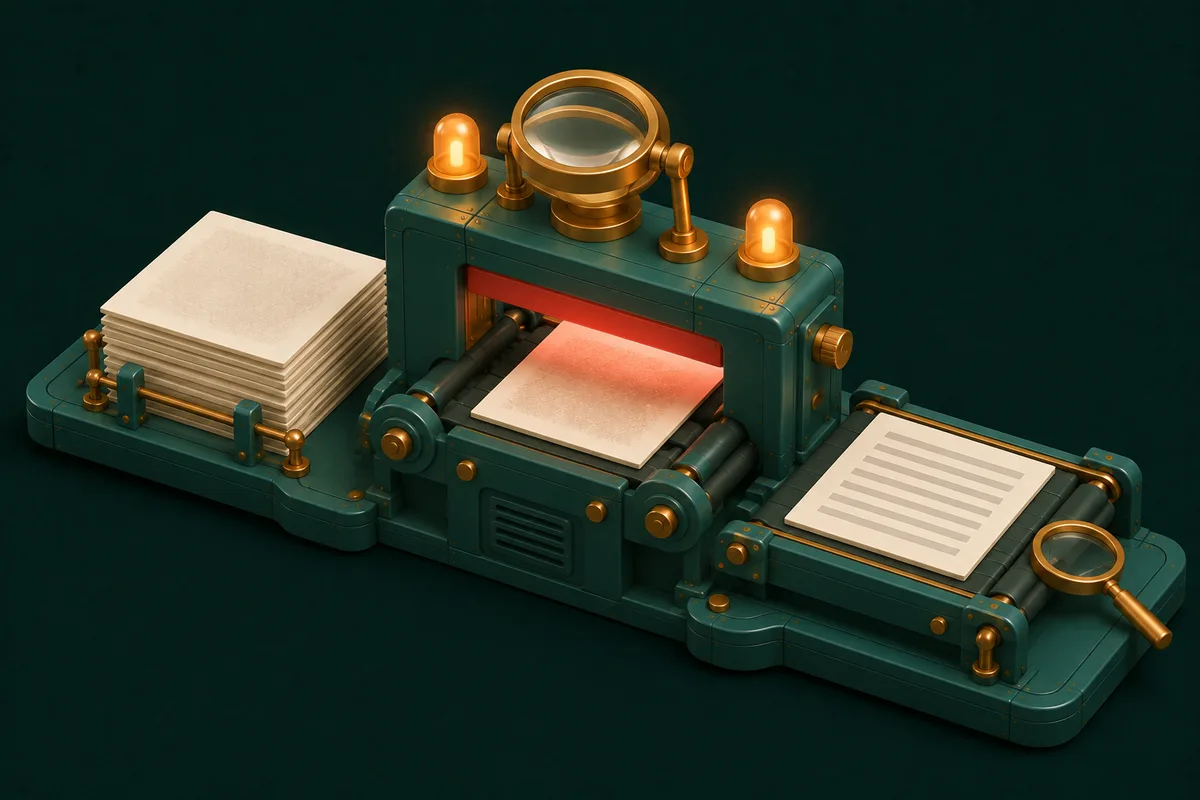
OCR — optical character recognition — looks at the picture and works out which letters the shapes are.
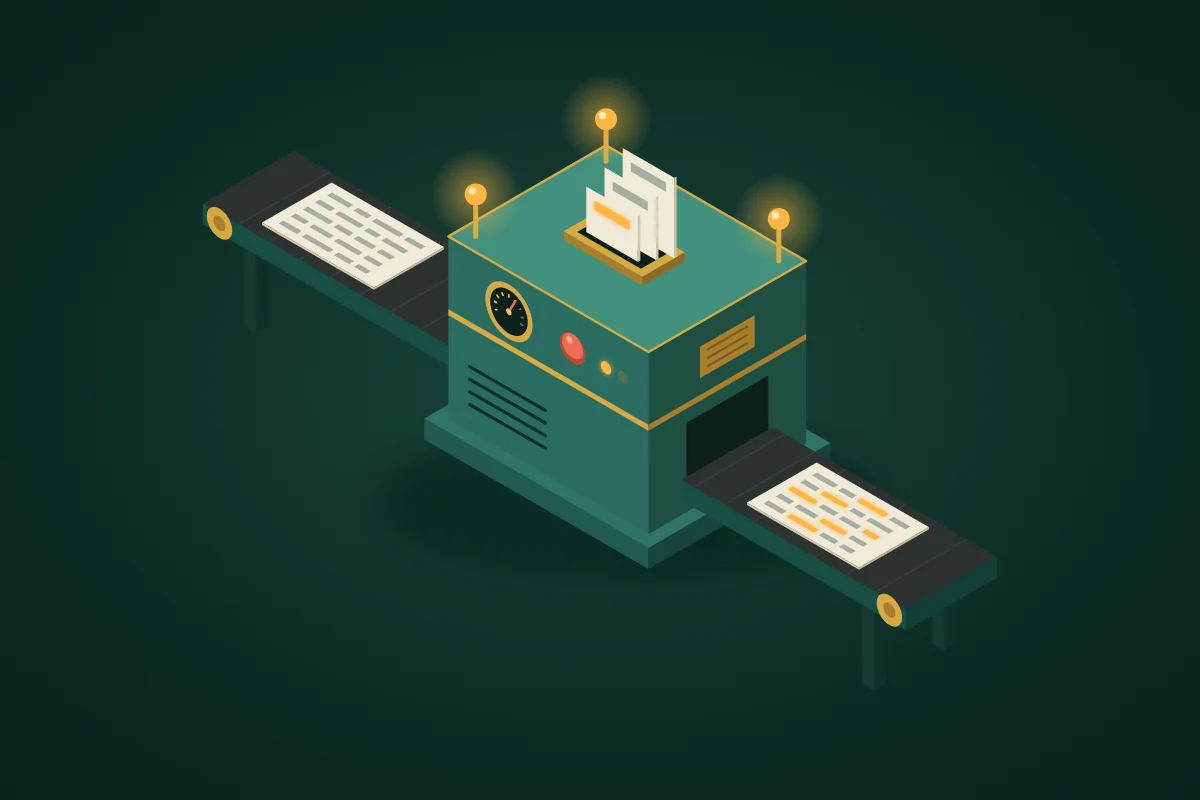
Here is the part most explanations get wrong: good OCR does not replace your document. PDF OCR leaves the scan exactly as it looks and adds an invisible text layer underneath it. The page still shows your original scan, stamps, signatures, coffee stain and all. But now there is machine-readable text sitting behind the image, aligned to it.
The consequences of that layer:
- Ctrl+F works. So does your operating system's file search, across every OCR'd document at once.
- You can select and copy text, and it comes out as text rather than a screenshot.
- Screen readers can read it, which is the difference between accessible and not.
- The document still looks identical. Nothing was redrawn or "cleaned up".
If the file is a photo rather than a PDF — a snap of a page, a whiteboard, a sign — OCR Text Recognition reads text straight out of an image. And if a PDF already has real text and you just want it out, you do not need OCR at all: PDF to Text extracts it directly, faster and perfectly accurately.
Quick way to tell which kind you have: try to select a line of text with your mouse. If individual words highlight, it is a real text PDF — use PDF to Text. If the whole page highlights as one block, or nothing does, it is a scan and needs OCR.
Doing it
- Open PDF OCR and add the scanned file. The recognition engine downloads once and is cached — that is the tool arriving, not your document leaving.
- Let it process. Each page is analysed, so a long document takes proportionally longer.
- Download the result. Same document, now searchable.
- Test it immediately: open the file and search for a word you know is on page one.
Where OCR gets it wrong, reliably
OCR is genuinely good and it is genuinely not perfect. Knowing the failure modes saves you from trusting a number that is wrong:
- Handwriting. Printed text is the job. Cursive and casual handwriting are usually beyond it — expect noise, not results.
- Bad scans. Skewed pages, shadows, creases, low resolution and phone photos taken at an angle all cost accuracy. A straight, well-lit 300 DPI scan is worth more than any software setting.
- Character confusion.
0/O,1/l/I,5/S,rn/m. This is why you should never copy an account number, a PAN, or a total out of an OCR'd document without reading it against the original. - Complex layouts. Multi-column pages, tables and sidebars can come out in an order that made sense to no one.
- Stamps and signatures over text. Anything overlapping the letters degrades them.
- Faint or degraded originals. Old carbon copies and faded thermal paper are hard for humans too.
The honest framing: OCR turns an unsearchable document into a searchable one with a small error rate. It does not turn a photograph into a certified transcript. For anything financial or legal, search with it and verify against the image before you act on a figure.
Why running this locally matters more than usual
Think about which documents actually need OCR. Almost by definition they are the ones that arrived on paper: identity documents, salary slips, medical reports, contracts, bank statements, academic records.
That is close to a complete list of the documents you would least like sitting in a stranger's processing queue. The generic "free OCR online" site uploads the file, runs recognition on its own servers, and deletes it afterwards on a promise you have no way to check.
Running recognition in your own browser removes the question entirely. There is no upload, so there is no retention policy to trust and no breach that could involve your marksheet. If you are handling identity documents in particular, it is worth also reading Mask Aadhaar and PAN Before Sharing — OCR makes a document searchable, but masking is what makes it safe to send.
Bulk work: invoices and receipts
If the task is not one document but a pile of them, two tools skip the manual re-typing entirely:
- Invoice OCR to Excel batch-reads many invoices into a single editable spreadsheet, exportable as Excel or CSV.
- Receipt OCR + Categorizer pulls merchant, date, total and tax off receipt photos, categorises each as an expense and produces an editable report.
Both run in the browser like everything else, which matters when the pile is your company's actual finances.
Why can't I search my scanned PDF?
Because there is no text in it to search — only an image of text. OCR adds the text layer that makes searching possible.
Does OCR change how my document looks?
No. PDF OCR adds an invisible text layer beneath the original scan. The visible page is untouched.
Is it free, and is there a page limit?
Free, no account, no artificial page cap. The practical limit is time — recognition runs on your device, so a three-hundred-page scan takes a while.
How accurate is it?
Very good on clean printed text; noticeably worse on handwriting, skewed or shadowed scans, and complex tables. Never copy a critical number out without checking it against the image.
Is my document uploaded anywhere?
No. Recognition runs inside your browser. Load the page, disconnect from the internet, and OCR still works — which is a check you can run yourself rather than a promise you have to take.
What if my file is a photo, not a PDF?
Use OCR Text Recognition for images. To turn photos into a PDF first, Images to PDF will assemble them.
Next time Ctrl+F comes up empty on a document you can plainly read, the file is not broken — it is a picture. Give it a text layer with PDF OCR, verify the numbers that matter, and the rest of the paperwork bench is at PDF Tools.