QR Codes That Work: Generate, Style and Test
URL, WiFi, UPI or vCard — build QR codes that scan on the first try, with the right error correction and print size for every job.
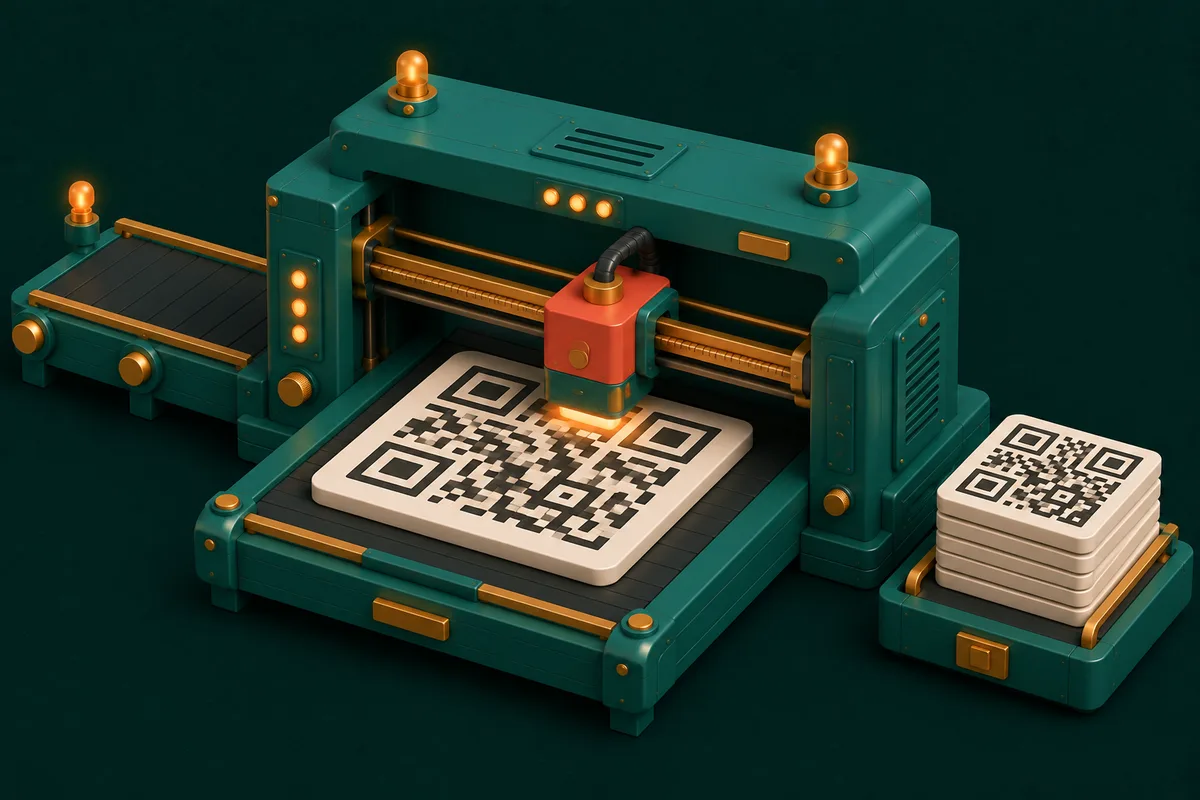
Most QR codes fail for boring, preventable reasons: printed too small, too little contrast, or styled until scanners give up. Generating the code takes ten seconds — the craft is in choosing the right QR type, the right error-correction level and the right print size so it scans on the first try, every time.
Pick the QR type that does the work for you
A plain URL code is fine for linking to a website, but purpose-built formats remove steps for the person scanning:
- URL or text — the default. Use the QR Code Generator and keep URLs short: every extra character adds modules (the little squares), making the code denser and harder to scan from a distance.
- WiFi — a code from the WiFi QR Code Generator encodes the network name, password and security type, so guests scan and connect without typing anything. Perfect for cafés, offices and the relatives who ask for your password on every visit.
- UPI payments — in India, the QR code is the payment terminal. The UPI Payment QR Code generator builds a code from your UPI ID that opens GPay, PhonePe, Paytm or any UPI app with your details pre-filled — print it once, tape it to the counter, done. You can fix the amount or leave it open for the customer to enter.
- Contact cards — a vCard QR Code Generator code saves your name, phone, email and company straight into the scanner's contacts. No typing, no app, no "I'll add you later".
- Events — the Event QR Code Generator encodes title, date, time and location as a calendar entry; one scan adds the wedding or webinar to a guest's phone.
For retail-style numeric codes — EAN, UPC, Code 128 — you want the Barcode Generator instead; QR codes and barcodes are different beasts. All of these live in the generators collection.
Generate a reliable code in five steps
- Choose the type that matches the job — don't encode a WiFi password as plain text, and don't hand out "just a URL" when a vCard would save the user four steps.
- Enter the content. Shorter is better: a 30-character URL produces a tidy 25×25-module code, while a 200-character URL produces a dense 45×45 grid that struggles in print.
- Set the error-correction level (next section) — M for screens, H for anything printed.
- Download PNG for documents and screens, or SVG if the code will be professionally printed or resized later — SVG stays razor-sharp at any size.
- Test with your own phone from a realistic distance before printing 500 flyers. The QR Code Reader also decodes any QR image, so you can verify exactly what a code contains.
Everything happens in your browser: WiFi passwords and UPI IDs are sensitive data, and with these generators they are never sent to a server or logged anywhere.
Error correction: the setting everyone ignores
QR codes carry built-in redundancy (Reed–Solomon coding), so damaged or partially covered codes still scan. Four levels trade capacity for toughness:
| Level | Recovers up to | Use for |
|---|---|---|
| L (Low) | 7% damage | Screens only, clean conditions |
| M (Medium) | 15% damage | Sensible default for most uses |
| Q (Quartile) | 25% damage | Outdoor posters, product packaging |
| H (High) | 30% damage | Center logos, laminated menus, anything handled daily |
Higher levels make the code denser — H roughly doubles the module count versus L for the same content — so pair high correction with a larger print size. The practical rule: choose H whenever the code will be printed, touched or weathered, or has a logo covering part of it.
Print-size rules so codes actually scan
The classic formula: minimum code size = scanning distance ÷ 10. A code scanned from 10 cm (a business card) needs 1 cm; a poster read from 3 meters needs a 30 cm code. In practice:
- Never print below 2×2 cm, even for close-range use — budget phone cameras need the real estate.
- Keep a quiet zone — a clear margin at least 4 modules wide — all the way around. Cropping that white border is the number-one print mistake.
- Contrast matters: dark code on a light background. Many scanners refuse inverted (light-on-dark) codes entirely.
- Matte beats glossy — lamination glare under shop lighting defeats more scans than small size does.
Styling without breaking scannability
Brand colors, rounded modules and a center logo are all achievable — the QR Code Designer handles logos, custom colors and module shapes. Keep three rules: maintain dark-on-light contrast, cap the logo at roughly 20% of the code area (with error correction set to H), and never touch the three large corner squares — those finder patterns are what scanners lock onto first. Then test the styled version on both an Android phone and an iPhone; older camera apps are pickier than you'd expect.
Honest limitations
Codes from these generators are static: the content is baked into the pixels, so you cannot edit the destination after printing. If you need editable destinations or scan analytics, that requires a dynamic-QR service that routes every scan through its redirect URL — with the trade-offs that the link dies if the service does, and the service can track your users. Static codes never expire and never phone home, which for most uses is exactly what you want. Also, very long content (500+ characters) produces codes too dense to scan reliably from print — shorten the URL first.
Frequently Asked Questions
Do QR codes expire?
Static codes never expire — the data lives in the pattern itself and works as long as whatever it points to still exists. If codes from a "free" QR site stopped working after a month, they were dynamic codes routed through that service's domain. Codes you generate here are yours forever.
What size do I need for a poster scanned from across a room?
Divide the farthest expected scanning distance by 10. Across a 5-meter shop floor, that means a 50 cm code. When in doubt, go bigger — no one has ever failed to scan a QR code for being too large.
Is it safe to put my WiFi password in a QR code?
The password sits in plain text inside the code — anyone who scans it, or photographs the printout, can read it. That's fine for a guest network at a café; for your home network, keep the printed code somewhere only people you trust will see it.
Can I add a logo without breaking the code?
Yes — set error correction to H, keep the logo under about 20% of the code area and clear of the three corner squares, then test-scan on two different phones. That is exactly the workflow the QR Code Designer is built for.
Print something that scans on the first try — start with the QR Code Generator and test before you laminate.