Split PDF: Extract Exactly the Pages You Need
Pull one chapter from a 300-page manual, separate combined scans, or cut a file into email-sized parts — visually, privately, in seconds.
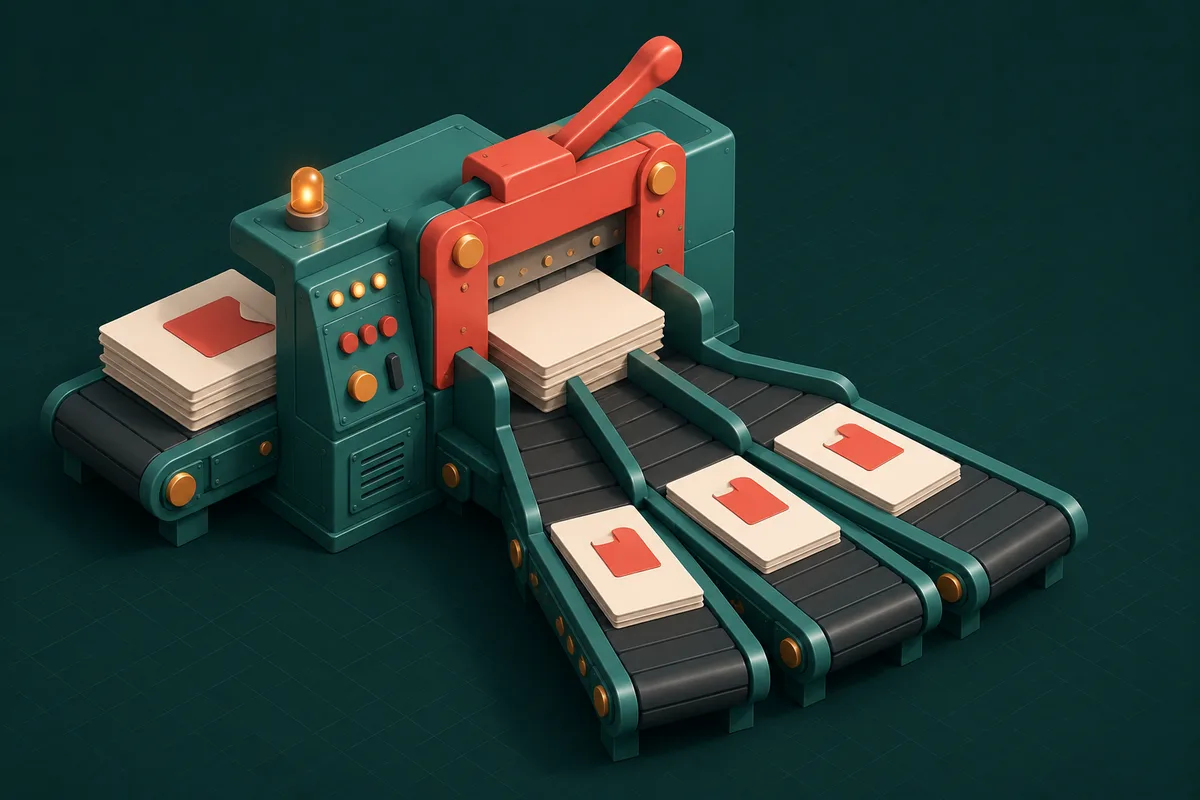
Somebody sends you a 300-page PDF and asks for your thoughts on section 4. A scanner has helpfully combined your passport, marksheet and photo into one file that three different portals each want separately. A signed contract needs just its signature page forwarded.
Splitting is the mirror image of merging — and doing it well means never opening a screenshot tool in desperation.
Three ways to split, and when to use each
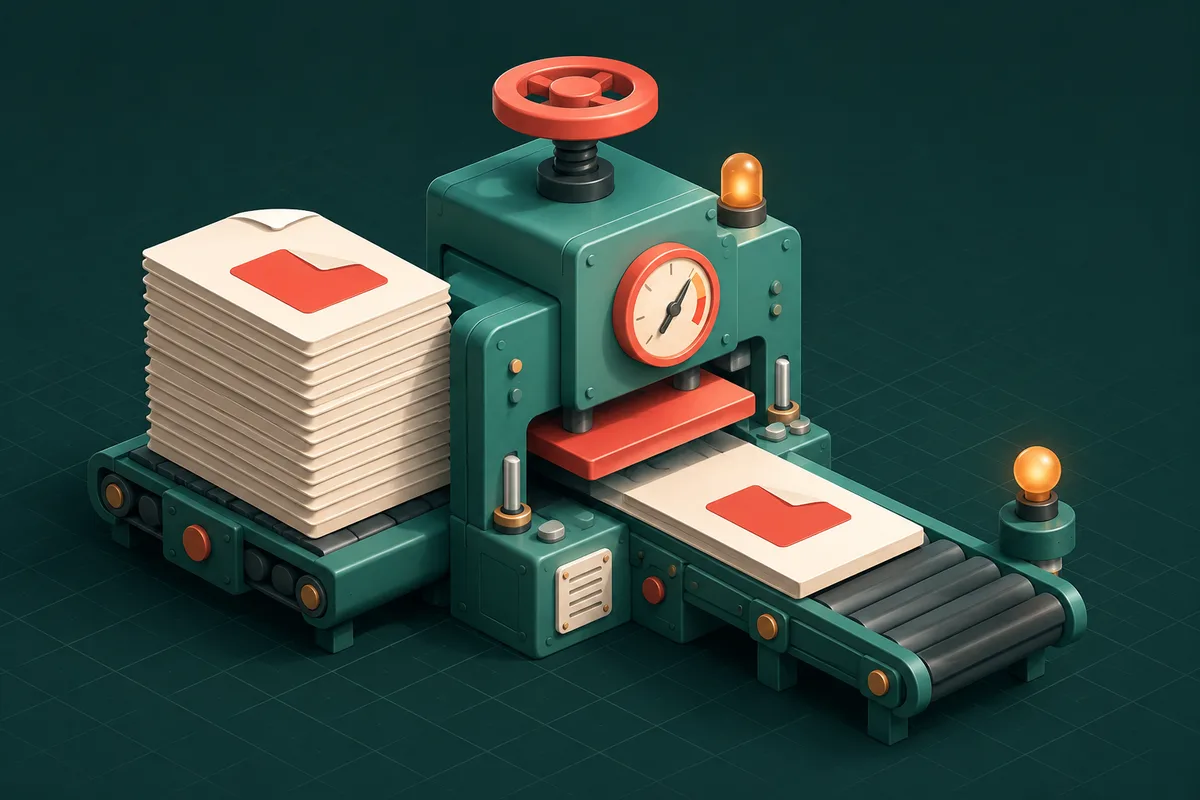
Extract a range — you know the pages you want ("give me 45–52"). Open Split PDF, enter the range, download just those pages as a new document. Multiple ranges produce multiple files in one pass.
Extract single pages visually — you'd recognize the right pages if you saw them. PDF Page Extract shows every page as a thumbnail; click the ones you want and export them together or separately. This is the tool for the "scanner combined everything" situation.
Split by size — the file must fit under a limit (email's classic 25MB, a portal's 5MB). Split PDF by Size cuts the document into sequential parts that each stay under your chosen ceiling, keeping pages intact and in order.
All three run entirely in your browser. A contract never uploads anywhere just because you needed one page of it.
Step-by-step: pulling one chapter out of a big PDF
- Open Split PDF and drop in the file. Thumbnails render locally — a 300-page file takes a few seconds.
- Enter the page range (say, 45–52), or switch to visual selection and click pages.
- Split, then download. The original file is untouched; you get a new PDF containing only your selection.
If you need the remaining document without those pages instead, that's Remove Pages — same idea, inverted.
Splitting messy scans into clean documents
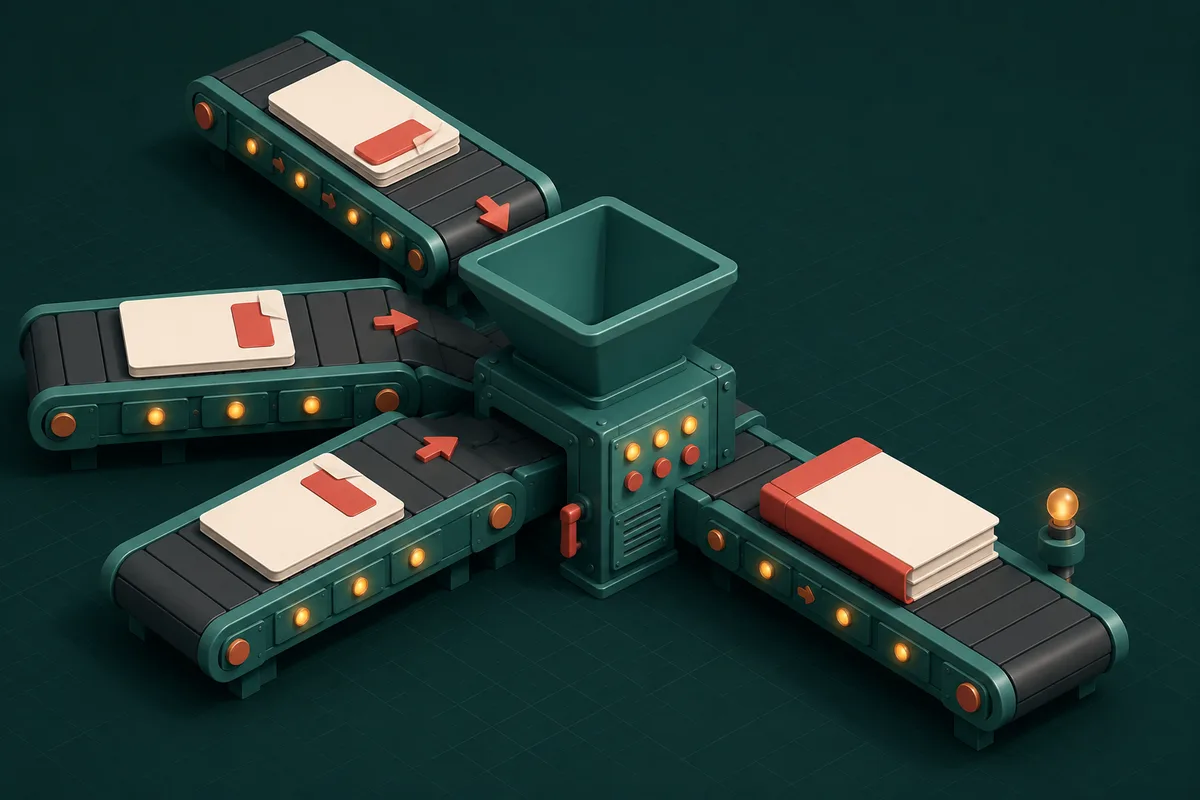
The multi-document scan is its own art form. The workflow that works:
- Survey visually in Organize PDF — see everything at once, delete blank backs, drag anything out of order.
- Fix orientation with Rotate PDF if the scanner flipped pages.
- Extract each document as its own file with PDF Page Extract.
- Compress each result with Compress PDF if a portal has size limits — pages 1–3 of a scan easily exceed 200KB on their own.
Ten minutes of scanning chaos becomes four clean, named, portal-ready files.
What splitting can't do
Two honest limitations. First, splitting works on pages, not content — it can't extract one paragraph or table (copy text out, or convert with PDF to Word for editing). Second, a password-protected file must be unlocked first via Unlock PDF — with a password you legitimately know.
Frequently Asked Questions
Does splitting reduce quality?
No. Pages are moved into a new file exactly as they are — no re-rendering, no recompression. The extracted pages are pixel-identical to the originals.
Can I split one PDF into many single-page files at once?
Yes — choose the every-page-separately option in Split PDF and you'll get a ZIP with one PDF per page. Useful for distributing certificates or invoices individually.
How do I split a PDF so each part stays under 5MB?
That's exactly what Split PDF by Size does — set 5MB and it calculates the page boundaries for you. No trial-and-error extracting.
Is there a page or file-size limit?
No artificial limits. Very large files (500MB+ scanned tomes) depend on your device's memory, since everything processes locally — which is also why nothing you split ever leaves your machine.
The next time someone asks for "just the relevant pages," send exactly that: open Split PDF, pick your pages, done — and the full lineup lives at PDF Tools.