How to Merge PDF Files Without Uploading Them
Combine contracts, scans and reports into one clean PDF — reorder pages visually, keep everything on your device, done in under a minute.
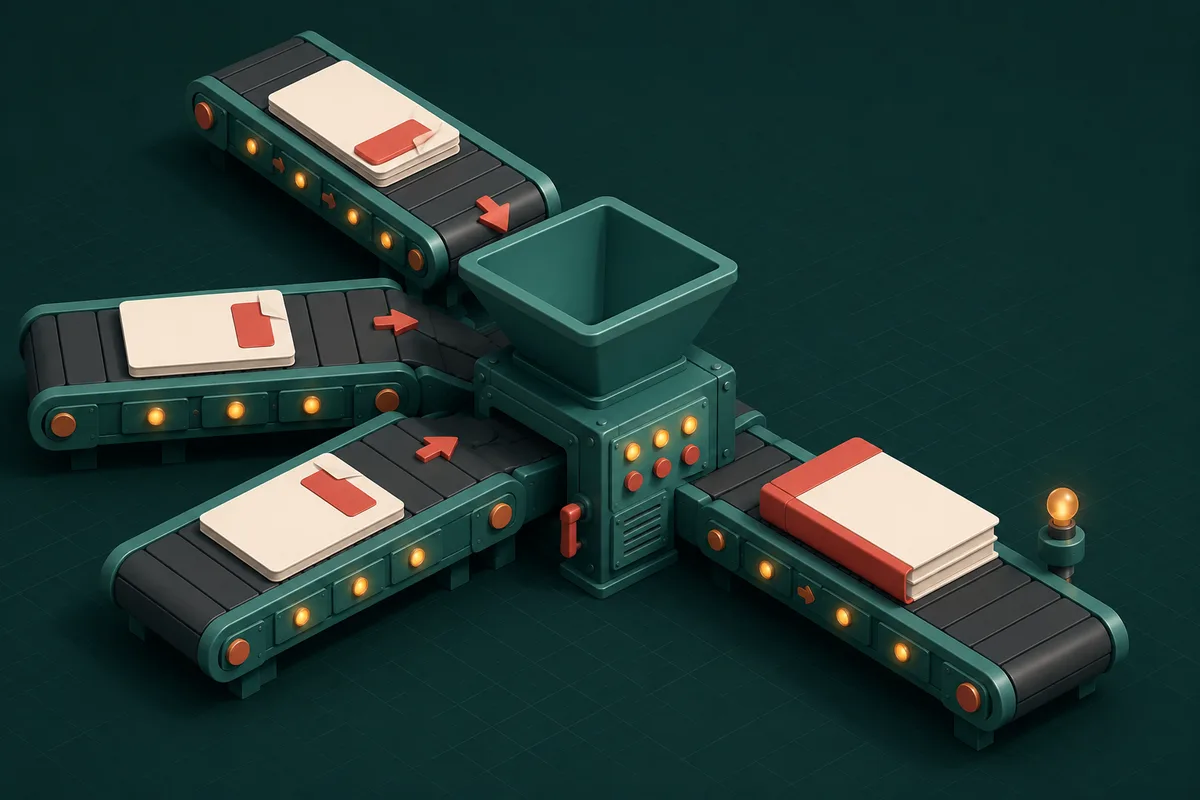
Three separate scans of a rental agreement. A cover letter here, a certificate there. An invoice split across four exports. Sooner or later, everything important ends up needing to become one PDF — because that's what the recipient, the portal, or plain common sense demands.
Merging is the most-used PDF operation in the world, and it's also where most people unknowingly hand their private documents to a stranger's server. Let's fix both.
The one-minute merge
- Open Merge PDF.
- Drop in your files — as many as you need, in any order. Everything loads locally; nothing is transmitted.
- Drag the thumbnails to reorder. What you see is the final page order.
- Click merge, download the combined file. Done.
Because the work happens in your browser rather than on a server, there's no upload progress bar, no queue, and no waiting for a download link by email. A 50MB merge is as private as editing a file in Word.
Why "no upload" matters more for merging than anything else
Think about what people merge: signed contracts, salary slips for a loan application, medical reports for insurance, complete visa dossiers. These are precisely the documents you'd never email to a stranger — yet a typical online merger receives them, stores them "temporarily," and asks you to trust a deletion policy you can't verify.
A browser-based merge has no such policy because it has nothing to delete. You can run Merge PDF with WiFi switched off and it works identically — that's the proof.
Getting the order and contents right
A clean merged document is more than concatenation. Three habits that make yours look professional:
- Reorder before merging, not after. Dragging thumbnails now beats re-splitting later. If you're combining scans that arrived in reverse, sort them visually first.
- Drop the junk pages. Blank backs of pages and accidental duplicates are merge classics. Run Remove Pages on a messy source file first, or use Organize PDF to rearrange and delete in one visual pass.
- Rotate before you combine. One sideways scan in an otherwise perfect dossier looks careless — Rotate PDF fixes it in seconds.
After the merge: two finishing touches
Size check. Merging five scans can produce a hefty file, and application portals rarely accept 10MB. Run the result through Compress PDF — the 200KB/500KB presets exist exactly for this handoff.
Page numbers. For anything longer than a few pages — reports, tender documents, appeal bundles — Add Page Numbers makes the combined document navigable and reference-able ("see page 14" beats "see somewhere in the middle").
Merging other things into PDFs
Not everything starts as a PDF. If your inputs are photos or screenshots, JPG to PDF combines images directly into a single document — handy for receipts and handwritten notes. Office files convert first via Word to PDF or Excel to PDF, then merge like any other PDF.
Frequently Asked Questions
Is there a limit on how many PDFs I can merge?
No artificial one. The practical limit is your device's memory — merging dozens of normal documents is routine; merging fifty 100MB scans will push any browser. For genuinely huge jobs, merge in groups.
Will merging reduce the quality of my PDFs?
No. Merging rearranges existing pages into one container — it doesn't re-render or recompress anything. Quality changes only if you deliberately compress afterwards.
Can I merge password-protected PDFs?
Locked files need unlocking first — if you know the password, run the file through Unlock PDF, then merge normally. Merging can't (and shouldn't) bypass a password you don't know.
Does the merged file work everywhere?
Yes — the output is a standard PDF that opens in any reader, prints normally, and uploads to any portal.
Next time a "please send as one PDF" email lands, you're a minute away: open Merge PDF, drag, merge, send — and explore the rest of the toolkit under PDF Tools.