Turn Photos and Scans into One Clean PDF
Homework photos, receipts, ID scans — combine any images into a single ordered PDF with sensible page sizes, right in your browser.
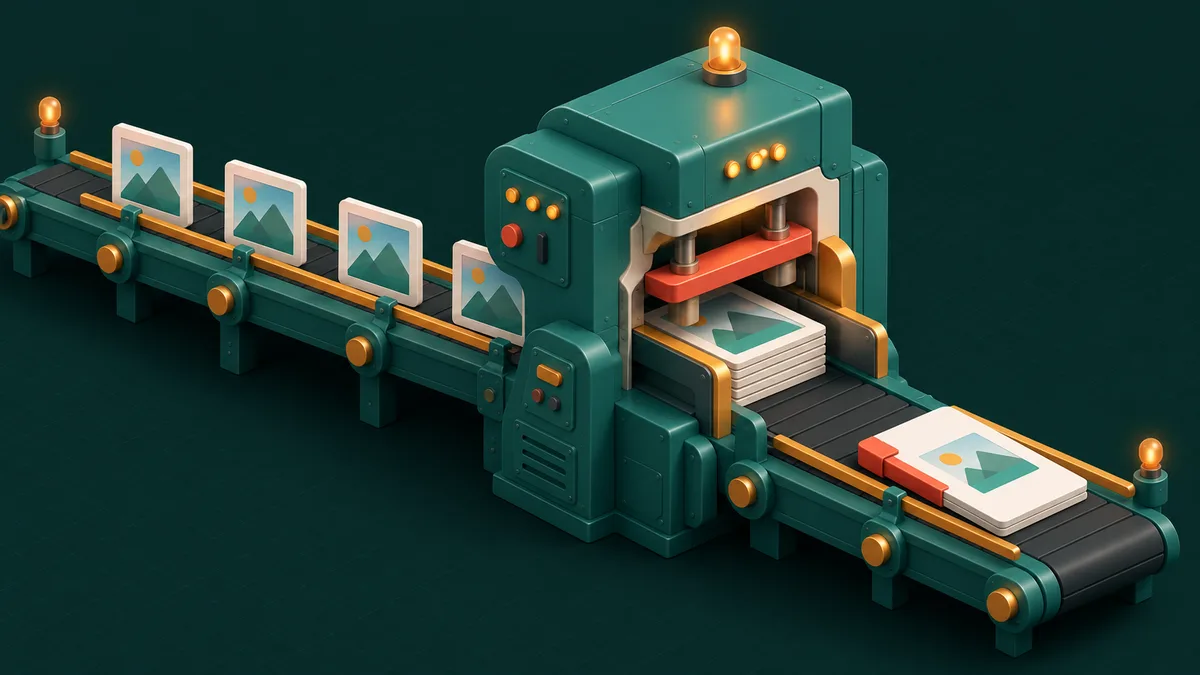
"Please submit as a single PDF" — five words that stand between a folder of phone photos and every assignment portal, expense system and visa application on Earth. You have nine photos of homework pages, or six receipts, or both sides of three ID cards. What they want is one file, in order, that opens the same way everywhere.
Photos-to-PDF is the bridge, and doing it well is mostly about three small decisions people skip.
The basic conversion
- Open JPG to PDF — despite the name it takes PNG, WebP and other formats too.
- Drop in all your images at once.
- Drag thumbnails into the right order — this is your page order.
- Choose page setup (below), convert, download one PDF.
As with every AnyTool utility, images never upload anywhere — worth remembering when the images are your passport.
Three decisions that make it look professional
Page size: A4 vs. image-sized. Fitting photos onto A4 pages makes a document that prints naturally and looks like paperwork — right for assignments and applications. Image-sized pages (each page exactly the photo's dimensions) suit screenshots and artwork where cropping or margins would hurt. When a portal is involved, A4 is almost always the expectation.
Orientation consistency. A PDF that alternates portrait and landscape reads like a flip-book. Photograph pages consistently, or fix the strays first — Image Flip and rotation in Crop Image square things up before combining.
Margins. A small margin (rather than edge-to-edge) keeps content clear of printers' dead zones and looks deliberate. Edge-to-edge is for photos meant to be viewed, not printed.
Getting phone photos document-ready first
The difference between "photos stapled together" and "looks scanned" happens before conversion:
- Crop to the paper. Kitchen-table backgrounds around your homework scream phone photo. Crop Image — or Freehand Crop for angled shots — isolates the page.
- Fix the format. iPhone HEIC photos confuse many portals; run them through HEIC to JPG first.
- Tame the sizes. Twelve 4MB photos make a 48MB PDF that no portal accepts. Compress Image or Batch Image Compress them first — or convert, then run the result through Compress PDF with a target size like 500KB.
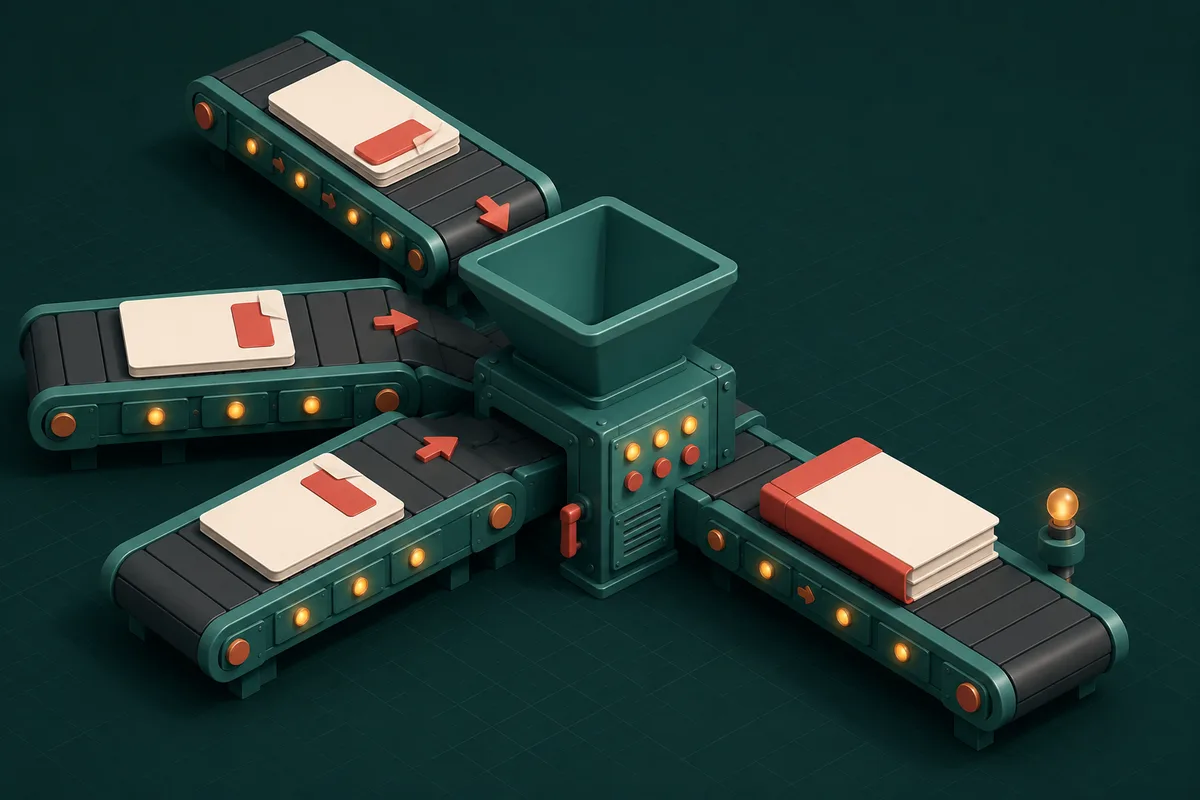
That last pipeline — photograph → crop → combine → compress to target — is the reliable route from "pictures on my phone" to "portal accepted my submission."
Receipts, IDs and other real-world stacks
For expense claims, image-per-page with consistent A4 keeps each receipt separately referenceable ("receipt on page 4"). For ID documents, front and back on consecutive pages is the convention reviewers expect. And when different document types must travel together — photos plus an existing PDF form — convert the images first, then Merge PDF everything into the final bundle, and Add Page Numbers if it runs long.
Frequently Asked Questions
How many images can I combine at once?
No fixed limit — batches of dozens are routine. Since processing is local, truly enormous batches (hundreds of full-resolution photos) are bounded by your device's memory; split those into two passes.
Will converting reduce my photo quality?
The image goes into the PDF as-is by default — no forced recompression. File size only drops if you compress before or after deliberately.
Can I mix JPG, PNG and screenshots in one PDF?
Yes — formats can be mixed freely; each becomes a page. Order them however you drag them.
Portrait photos of landscape documents — what do I do?
Rotate the images upright first, then convert. It's two minutes now versus a sideways page eight forever.
The next "single PDF please" is a three-step job: open JPG to PDF, drag into order, convert — and the full document workshop lives at PDF Tools.