Convert PDF to Images: PNG, JPG and More
Turn PDF pages into crisp images for slides, social posts and previews — with the DPI and format choices that actually matter, explained.
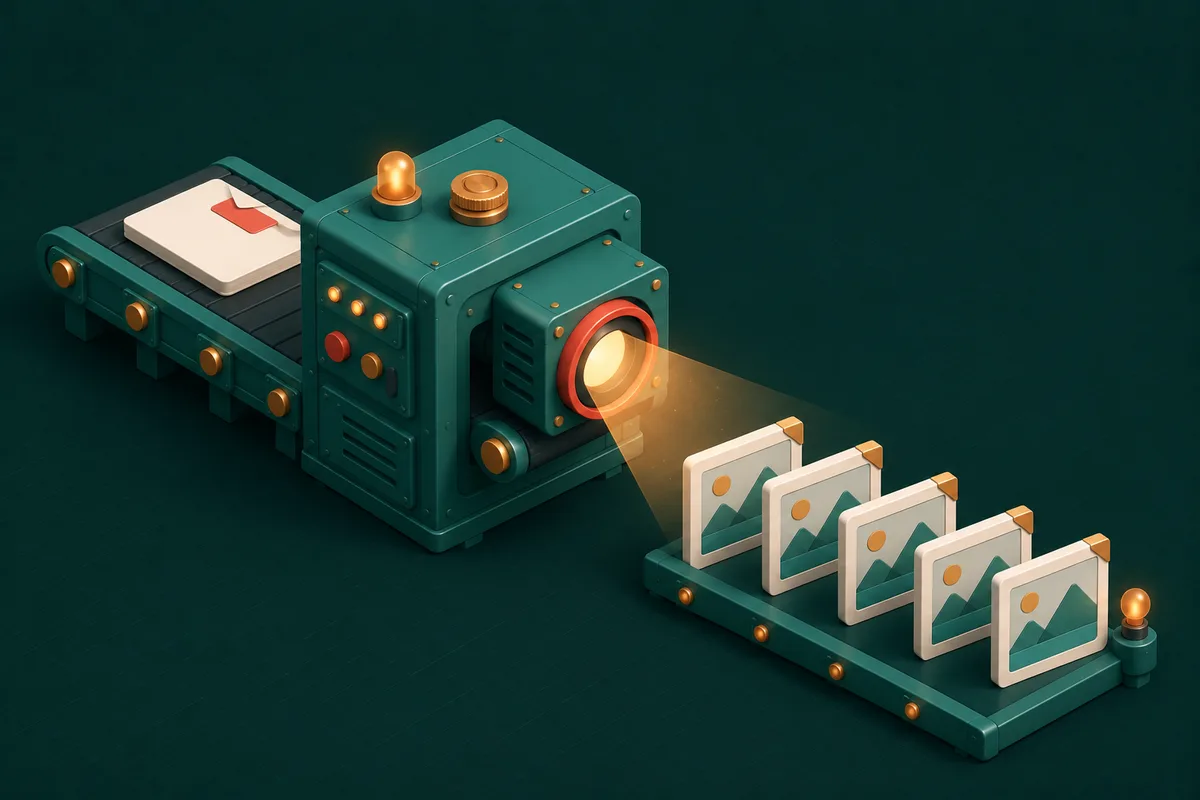
PDFs are built for documents; the rest of the internet runs on images. The moment a page needs to go into a WhatsApp chat, an Instagram story, a slide deck or a website thumbnail, "can you send that as a picture?" enters the conversation — and screenshotting a PDF at whatever resolution your screen happens to be is the amateur move we're retiring today.
The two-minute conversion
- Open PDF to JPG and drop in the file.
- Choose your pages — one, a range, or all of them.
- Pick quality/resolution (more on this below — it's the decision that matters).
- Download a single image, or a ZIP with every page neatly numbered.
Rendering happens in your browser: a contract converted for quick sharing never actually goes anywhere.
JPG or PNG? A 15-second decision
PDF to JPG for pages that are photographs or scans — smooth tones compress beautifully, files stay small for chat apps and email.
PDF to PNG for pages that are text, line art or diagrams — PNG keeps hard edges razor sharp with no compression fuzz around letters, which is exactly where JPG artifacts show first. PNG also supports transparency, relevant if the page art goes onto a coloured background later.
Sending a scanned certificate to a family group? JPG. Putting a flowchart page into documentation? PNG.
Resolution: the setting everyone gets wrong
A PDF page has no fixed pixel size — it's rendered at a chosen DPI, and that choice decides everything:
| Target | DPI | A4 page becomes | Notes |
|---|---|---|---|
| Chat / quick preview | 72–96 | ~800×1100 px | Small files, fine on phones |
| Screens & slides | 150 | ~1240×1750 px | The sweet spot for most uses |
| Print / zoom-heavy | 300 | ~2480×3500 px | Big files; only when genuinely needed |
The classic mistake is converting at low DPI, zooming in, finding blur, and blaming the tool. Text that must stay readable under zoom needs 150+ DPI at the source — no amount of "enhancing" the small image afterwards recreates detail that was never rendered. (If you're stuck with someone else's blurry export, Image Upscaler can help, but rendering correctly beats repairing.)
After conversion: shaping the images
Pages rarely leave as-is. The usual follow-ups, all in the browser:
- Crop Image — isolate the one chart or signature block you actually wanted from the page.
- Resize Image — hit exact pixel dimensions for a website or portal.
- Compress Image — a 300-DPI page is a hefty file; compression makes it mail-friendly without visible loss.
And the reverse trip — turning edited images back into a document — is JPG to PDF.
What this conversion is not for
Converting to images gives you pictures of pages — the text inside stops being selectable or editable. If the goal is editing the content, you want PDF to Word instead; if it's extracting the text, PDF to Text pulls it out directly. Images are for showing pages, not working with them.
Frequently Asked Questions
Which pages can I convert — do I have to do the whole file?
Any selection: a single page, a range, or everything. Batch export delivers a ZIP with pages numbered in order, so a 40-page deck becomes 40 tidy images in one pass.
Why does my converted text look fuzzy?
Almost always DPI. Reconvert at 150 or 300 DPI and compare — the difference on text is dramatic. Use PNG for text-heavy pages to avoid JPG's edge artifacts on top.
Can I convert a password-protected PDF?
Unlock it first with Unlock PDF using a password you know, then convert normally.
Is there a page limit?
No set limit — it's your device doing the work. Very large documents at 300 DPI are the one case to convert in batches, purely for memory.
Next time someone asks for "that page as a picture," deliver a crisp one: open PDF to JPG, set 150 DPI, and send — more converters await at PDF Tools.